
TL;DR
Can you turn off AI in Canva now?
Yes. Canva added a free switch that hides its AI tools that create new content, plus a setting to see less AI-made content in its library. You can design without AI prompts in the way, or keep AI art out of client work. Flip the switch under Profile > Settings > Permissions.
What did Canva change?
On Thursday, November 19, 2026, Canva launched two settings it calls AI Controls. Both are available on Canva Free and Canva Pro "at no extra cost," according to Canva's announcement.
- Generative AI Control. A switch that turns Canva's generative AI features, meaning tools that create new text or images rather than edit what you already have, on or off. When it's off, those features are hidden across Canva, and you can switch them back on any time.
- AI-Generated Content Control. An option to limit AI-made templates and graphics while you browse the Canva library. Canva says it doesn't change any of your existing designs.
Canva says its community has used its AI tools "more than 38 billion times." The company still pitches AI as a big part of the app, so this is an option, not a retreat.
How do I turn off AI in Canva?
Canva and The Verge give the same paths:
- To hide the AI tools: go to Profile > Settings > Permissions, then switch off "Enable generative AI features."
- To see less AI-made content: go to Profile > Your account > AI Personalization, then turn on the option to show less AI content.
You can change either one back whenever you want.
Which Canva AI tools does the switch hide?
The Verge lists Magic Expand (which extends a photo past its edges), image generation in Canva's chatbot, Magic Write, Magic Design, Magic Layers, Magic Edit, Dream Lab, Canva Code and AI Shapes among the features that go away when the switch is off.
Canva calls a second group "assistive editing tools," and these stay on. Background Remover and Magic Grab, which lets you pick up an object in a photo and move it, are the two examples Canva gives. Canva says they "make everyday tasks faster without generating anything new."
Will Canva label my design as AI-generated?
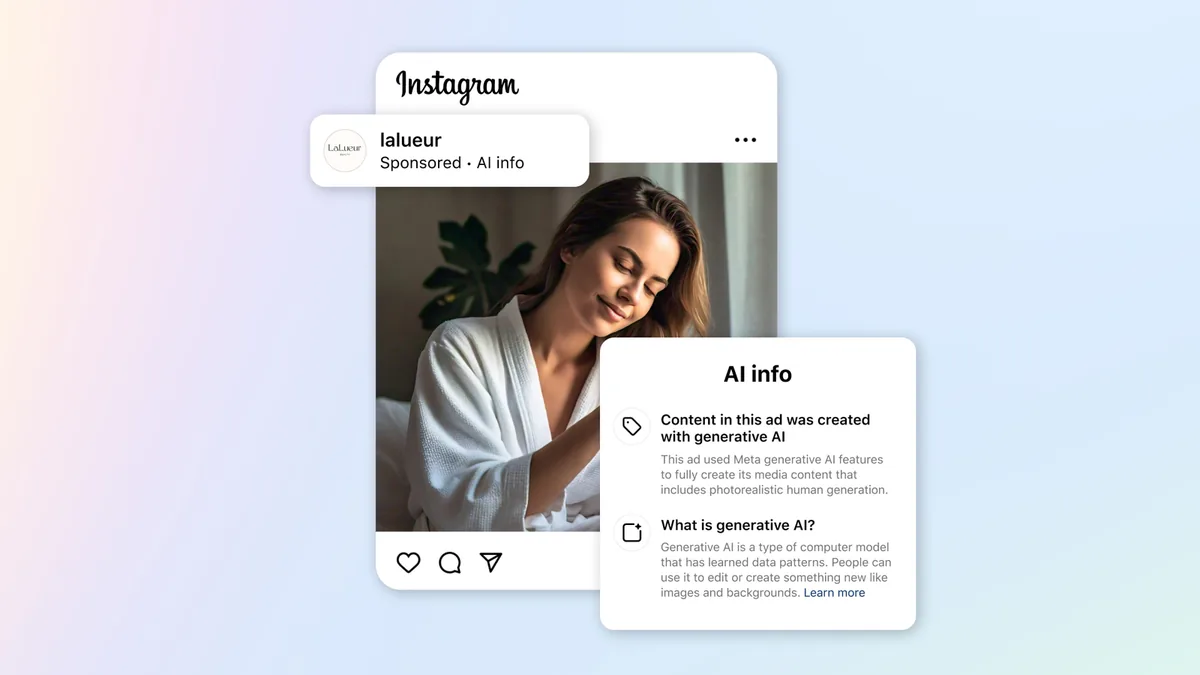
Not for those editing tools alone. Canva says Background Remover and similar tools won't trigger an AI-generated content label, so it won't add metadata (hidden information stored inside the file) marking your design as AI-made. Social platforms that read that data won't tag your post as AI just because you removed a background.
AI-made assets from Canva's library are a different story. Canva says those are marked as AI-generated in their metadata, and that label can carry through to platforms that recognize it.
Does "show less AI content" remove all of it?
No. The setting reduces AI-made content in search results and recommendations, and human-made work shows up first, per Canva and The Verge. Canva says only "a small portion" of its library is AI-generated, such as abstract backgrounds and illustrated graphics. Canva also points out that the creators behind its human-made templates are paid each time you use their work in a design.
If you already use Canva's Brush editing model and like it, nothing changes unless you flip the switch.
X reactions
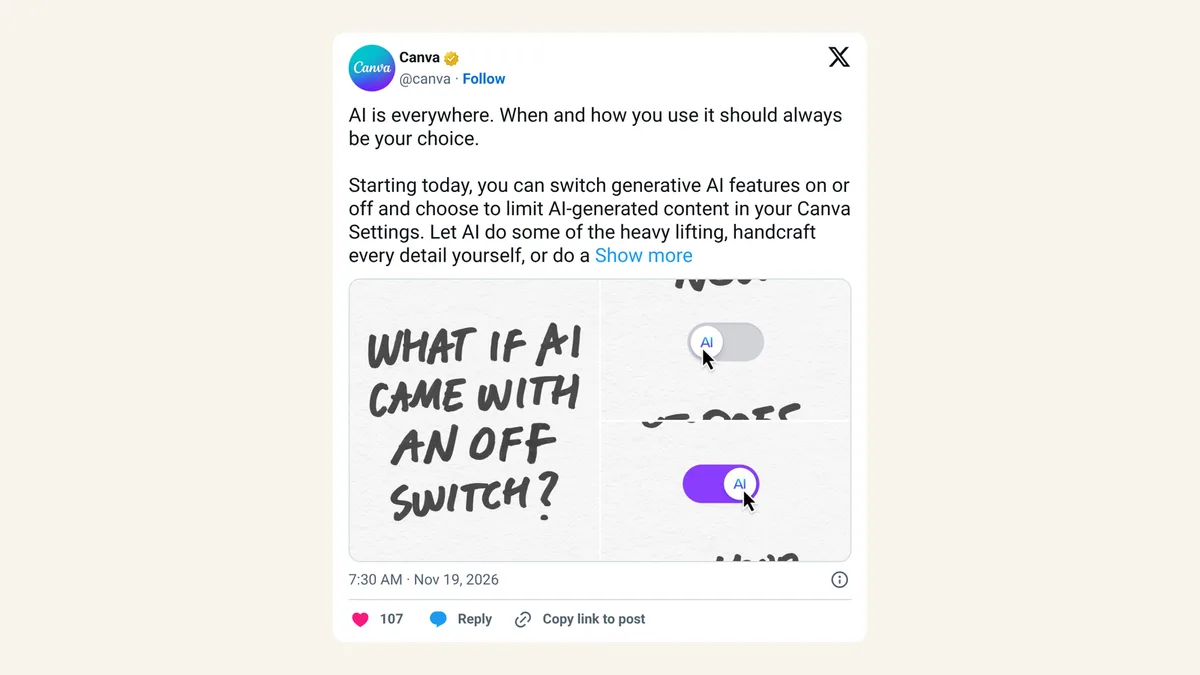
AI is everywhere. When and how you use it should always be your choice.
— Canva (@canva) November 19, 2026
Starting today, you can switch generative AI features on or off and choose to limit AI-generated content in your Canva Settings.
Our take
We like this, and we wish more apps did it. Plenty of people pay for Canva to make things themselves, and some sell work to clients who want it made by a person. A single switch beats hunting through menus to dodge AI buttons.
The weak spot is the second setting. "Show less" can still let some AI-made assets through, so if a client contract bans AI art, check each asset yourself rather than trusting the filter. We'd also like Canva to say plainly which features count as generative instead of leaving people to work it out from a list in the press.
— Artificially Nerdy
What to do now
- Decide per account. Turn the switch off if AI buttons get in your way, or leave it on if you use Magic Write or image generation.
- Turn on "show less AI content" if you want human-made templates first in search.
- Check client work by hand. For jobs that ban AI art, look at each template and graphic before you deliver.
- Keep using Background Remover without worry about an AI label on your post.
- On a team plan? Ask your Canva admin, since Business, Enterprise, Teams and Education accounts already have separate admin AI permissions.
FAQ
Is the Canva AI off switch free?
Yes. Canva says both controls are on Canva Free and Canva Pro at no extra cost.
Does turning off AI delete designs I made with it?
No. Canva says the switch hides the features and can be turned back on any time, and the content setting doesn't change your existing designs.
Can a company turn off Canva AI for everyone?
Canva says admins on Business, Enterprise, Teams and Education plans already had AI permissions to decide how their teams use AI. The new switch is the personal version.
Will Canva stop making AI features?
No. Canva says it is "continuing to invest" in its AI tools, including Canva Craft, its first in-house image model.
Sources
- Canva Newsroom: Introducing AI Controls: Your creativity, your call — Canva Team, November 19, 2026. Both controls, menu paths, 38 billion uses, assistive tools, metadata labels, admin permissions.
- The Verge: Canva adds an AI 'off' button — Emma Roth, November 19, 2026. List of features the switch turns off, menu paths.
- Canva on X — November 19, 2026, 7:30am ET.