

TL;DR
How do you stop an AI agent from spending too much or doing too much?
This week, Coinbase added trading inside ChatGPT, Gemini started paying with Google Pay, and a Mac beta added new controls for AI apps. That means AI can now touch your money and your files. Before you say yes, set a spending cap, keep approvals on and give AI only the apps it needs.
Why set limits before an AI touches your money?
An AI agent is an assistant that takes actions for you, like clicking buttons, placing orders or opening apps, instead of only answering questions. Agents make mistakes. Google says so plainly in its own launch post for Gemini Tasks: it has worked hard to cut down on mistakes but hasn't gotten rid of all of them.
That's a fair warning for every tool on this list. A wrong answer in a chat costs you a few seconds. A wrong trade or a wrong purchase costs real money. Limits you set in advance decide how big a mistake can get, and they work even when you're not watching.
A limit you set on Sunday protects you from a mistake on Thursday.
How do the limits work on Coinbase's ChatGPT trading plugin?
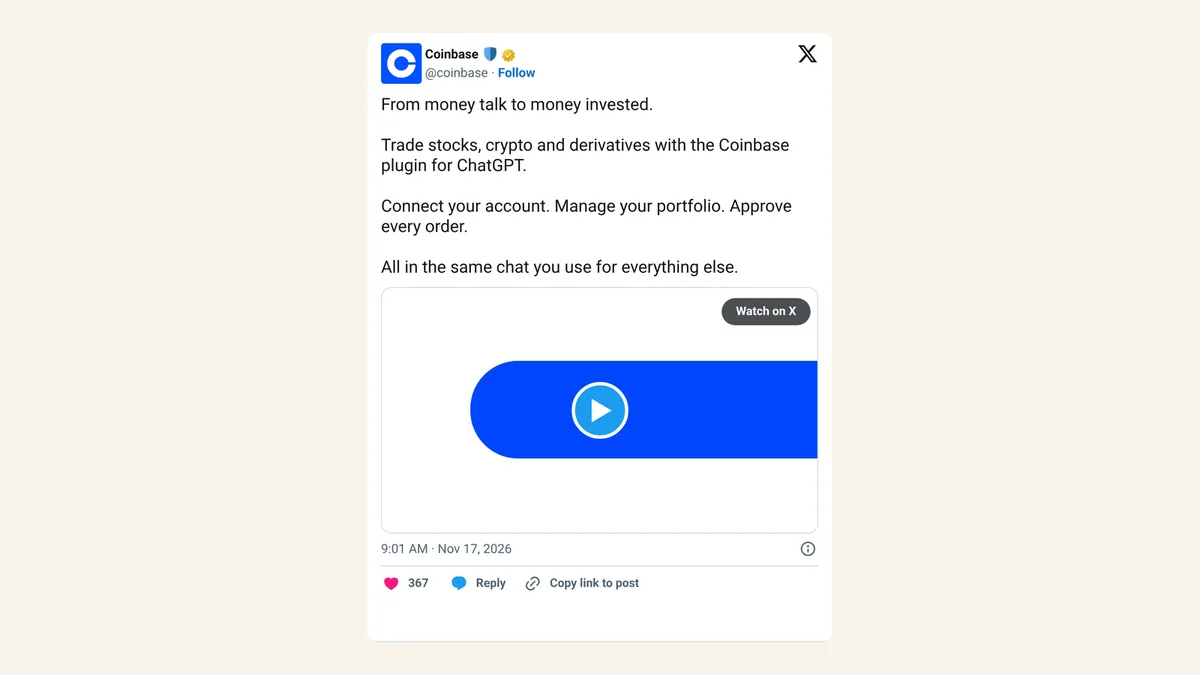
On Tuesday, November 17, 2026, Coinbase launched a plugin that lets eligible U.S. customers connect their account, check their portfolio and trade stocks and crypto inside ChatGPT, along with dated futures.
Two layers protect you. First, every new order, edit, cancel and USD-to-USDC conversion needs your approval on a Coinbase confirmation card. USDC is a stablecoin, a crypto token designed to stay worth one dollar.
Second, Coinbase added Agent Controls on November 11. Coinbase says these run "on Coinbase's servers, not inside your agent, so your agent can't bypass them." You manage them in the Coinbase app or on the web, behind your password and two-factor login. The options:
- Maximum trade size. A dollar cap per trade. Coinbase's example: "A max of $100 per trade."
- 24-hour volume limit. A cap on the total your agent can trade in a day. Trades over it won't go through.
- Auto-stop. Set a loss percentage for your portfolio. If it drops past that, the agent stops trading until you turn it back on in the app.
- Product permissions. Pick which kinds of products the agent may trade, such as stocks but not derivatives. Coinbase lists this one as "coming soon."
Pick numbers you'd be calm about losing in a bad week, not numbers that match your whole balance. And remember the approval card only checks that you meant to place the order. It doesn't check whether the AI's reasoning behind the trade was any good.
How do you set a spending limit in Gemini?
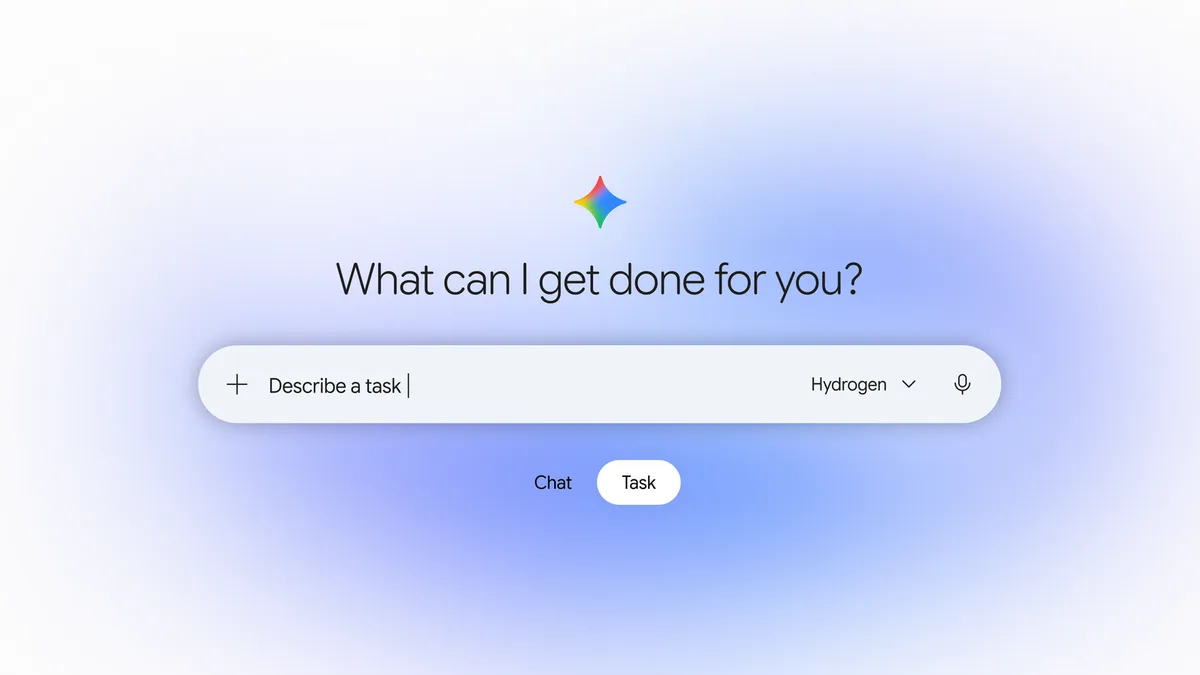
Google's Gemini Tasks, which went free on Tuesday in the U.S. and several other countries, can now shop and check out with Google Pay. Google says you "can also set a hard spending cap upfront, and Gemini is designed to stay within your budget." Read our Gemini Tasks post for what the free Tasks rollout includes.
Gemini is also "designed to ask for your confirmation or pre-approval before clicking 'Buy.'" For routine jobs you trust, like adding an item to a grocery cart, you can choose "Always allow" so it stops asking.
That last setting deserves care. Save "Always allow" for small, repeat purchases you'd happily make without thinking. Keep the confirmation step for anything new, anything big and anything from a store you haven't used. Google says you can adjust task settings, disconnect Google and third-party apps, and delete chat history at any time. Your receipts and tracking info land in Google Wallet, which makes a quick weekly check easy.
How do you keep an AI app from taking over your Mac?
Apple's macOS 27.3, now in beta, changes what happens when an app asks for Full Disk Access or System & App Protection Override. Full Disk Access lets an app open every file on your Mac. System & App Protection Override lets it control other apps.
Apple's support page doesn't soften the risk. With Full Disk Access, an app "can read, change, delete, and export this data without asking," including messages, emails and photos. With full control, it can "see every window and app, including ones in the background, and capture every keystroke."
The new prompt gives you a narrower choice:
- Click Choose Folder or Choose Apps instead of granting everything.
- Check the app's setup instructions and pick only the folders or apps it needs.
- For each app it can control, choose Ask First instead of At Any Time.
- Not sure what it needs? Apple says to contact the developer and wait before giving access.
Apple only recommends the full "Bypass System Protections" option when you're certain the app comes from a trustworthy source and needs that level of access.
Apps you've already approved don't get the new prompt by themselves. To narrow one, open System Settings, click Privacy & Security, then Full Disk Access or System & App Protection Override. Remove the app with the minus button, add it back with the plus button, and choose specific folders or apps when your Mac asks.
What limits should you set on any AI agent?
The three tools above share a pattern, and it carries over to whatever agent you try next:
- Cap the money. A per-purchase or per-trade limit, plus a daily total if the tool offers one.
- Keep a human click. Leave confirmations on for anything that spends money or can't be undone.
- Give the smallest access that works. Specific apps and folders, not your whole computer or every account.
- Know where the off switch is. Find the pause, auto-stop or disconnect setting before you need it.
- Check the receipts. Look over orders, trades and app permissions once a week while you're still getting used to a tool.
Limits that live on the company's side, like Coinbase's server-side controls, are stronger than instructions you type into a chat. Telling a chatbot "don't spend more than $50" is a request. A cap in your account settings is a rule.
FAQ
Can I use the Coinbase plugin for ChatGPT outside the U.S.?
Coinbase describes the plugin as available to eligible U.S. customers. Check the Coinbase for Agents setup page for the current list of supported apps and requirements.
Does the Coinbase confirmation card mean the trade is a good idea?
No. It confirms that you approved the order. The research and suggestions in the chat still come from an AI, which can be wrong.
Can I turn "Always allow" off later in Gemini?
Google says you can adjust task settings at any time, as well as disconnect apps and delete chat history.
Will macOS 27.3 change permissions I gave apps before?
No. To limit an older permission, remove the app in Privacy & Security settings and add it back, then choose specific folders or apps when prompted.
Sources
- Coinbase: Agent Controls for Coinbase for Agents — November 11, 2026. Trade size, 24-hour limit, auto-stop, product permissions (coming soon), server-side quote.
- Coinbase for Agents setup docs — current page. Supported apps, confirmation cards.
- Coinbase on X: ChatGPT plugin launch — November 17, 2026.
- Google: Put Gemini to work for you — November 17, 2026. Spending cap, confirmation before "Buy," "Always allow," mistakes quote.
- Apple Support: If an app asks for Full Disk Access or System & App Protection Override — November 16, 2026. Choose Folder/Choose Apps, Ask First, risk wording, how to change access.