
TL;DR
How do I keep a shared AI screen from showing my private stuff?
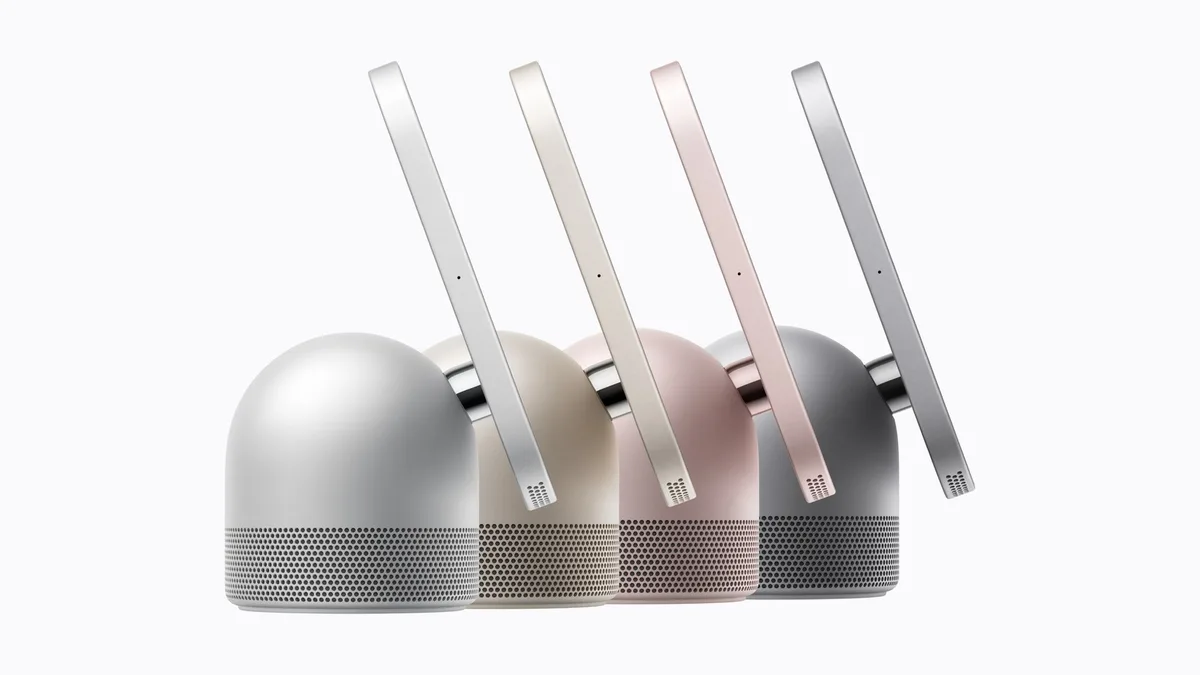
New AI smart displays, like Apple's HomeView, can read out your texts and calendar to whoever is nearby. That's handy, but a shared screen in a busy room needs rules. Spend ten minutes on profiles, personal content and guest settings before the whole family uses it.
Why does a shared AI screen need different settings from your phone?
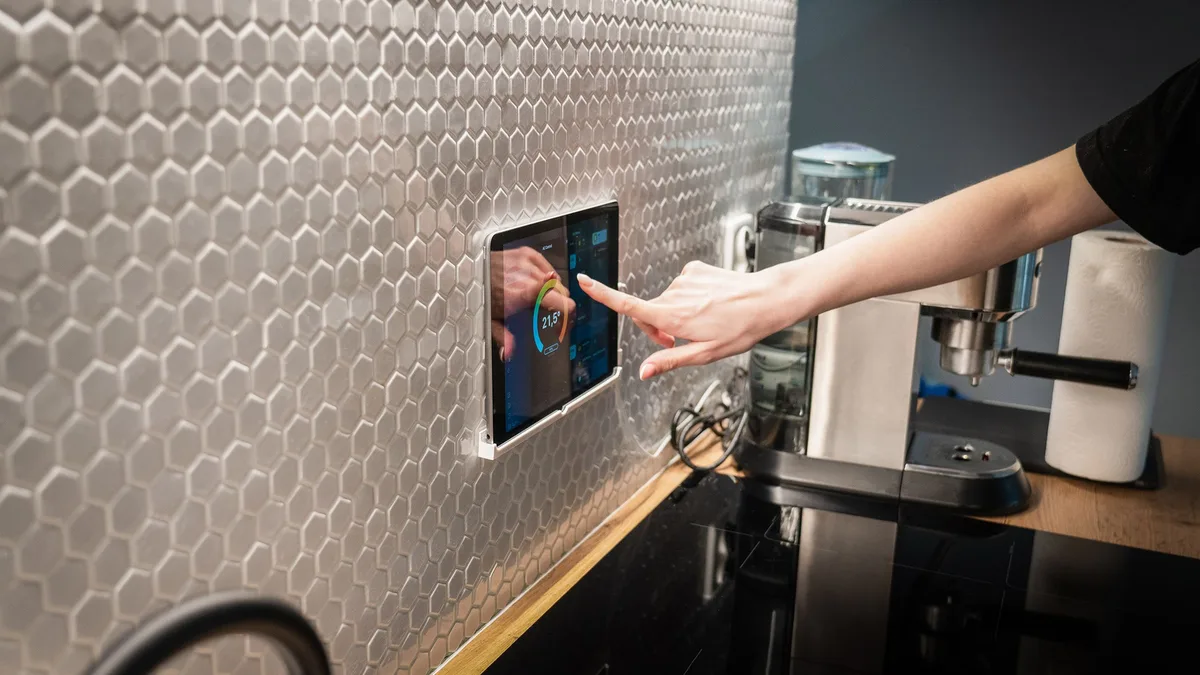
Your phone is yours. A smart display in the kitchen belongs to everyone who walks past it: kids, partners, roommates, the plumber.
Until now that mostly didn't matter, because smart displays showed the weather and played music. The new wave runs proper AI assistants that can reach into your personal apps. Apple's HomeView, which went on sale on Friday, can use your calendar, messages and apps to answer questions once it's paired with your iPhone.
The Verge's reviewer found the catch quickly. While switching between family profiles, she could read her teenage daughter's texts for a few seconds. Nothing broke, exactly. The screen just did its job for the wrong person.
Who should get a profile on a family AI device?
Start by deciding who the device needs to know. HomeView recognizes up to six household members by face, and each one sees their own content. Echo Show and Nest Hub have their own versions of voice and face recognition.
Our rule of thumb: give a profile only to people who live there and want personal answers from it. Everyone else can use guest mode, which on HomeView is what people it doesn't recognize get automatically.
When someone moves out, remove their profile the same week. On HomeView that's under Settings, then People. An old profile is a door left unlocked for no reason.
Should personal content be on in a busy room?
On HomeView, Personal Content is on by default. Apple says it shows personal content only when three things are true: the device recognizes your face, your paired iPhone or iPad is on the same Wi-Fi, and that phone was unlocked recently.
That's a sensible set of checks, and it still leaves a gap on a busy kitchen counter. Your phone is nearby and unlocked half the evening.
A quick way to decide, room by room:
| Where the screen sits | Who walks past | Personal content |
|---|---|---|
| Bedroom or private office | Just you, maybe a partner | On is fine |
| Kitchen or living room | Family, kids, friends | Think twice; off if you have teenagers or frequent visitors |
| Hallway, front desk, shop counter | Guests, customers, workers | Off |
You can switch it off for one device under Settings, then your name, and leave it on elsewhere.
A smart display in the kitchen belongs to everyone who walks past it.
Can you stop the AI from answering by voice?
Yes, at least on HomeView. Apple's "Type your requests to Siri" setting turns off voice recognition and personal requests by voice. That's useful if you don't want anyone saying "read my last message" out loud and getting an answer, or if you'd rather type than talk.
Apple says the images and audio used for face and voice recognition are "never recorded or stored." Even so, read the privacy page for whichever device you own, because each company handles this differently.
What should a small office or shop do differently?
A shared AI screen at a front desk or in a staff room is a good calendar and smart home controller. It's a poor place for anyone's private messages.
For a work setup, we'd keep it simple:
- One shared profile or guest mode only. No personal phones paired to it.
- Personal content off. Use it for the shared calendar, lights, cameras and timers.
- A short note for staff on what the screen can and can't see, so nobody gets surprised.
Is the AI part ready to rely on?
Not fully. Apple calls Siri AI on HomeView a beta. Apple's support notes also say some server features have daily usage limits, with more access "available for a fee in the future." Early owners say Siri is often slow or gets stuck.
So treat the AI as a bonus for now. Set up the device for the jobs it already does well, and add personal AI answers once the software settles down and you trust how it handles your family.
FAQ
Do these tips work for Echo Show and Nest Hub too?
Yes. The settings have different names, but the same questions apply: who gets a profile, whether personal results show, and what guests can do. Check your device's privacy settings page.
Can a guest see my calendar on HomeView?
Apple says personal content shows only to people HomeView recognizes, with their paired phone nearby and recently unlocked. People it doesn't recognize get guest mode.
Does HomeView save photos of my face?
Apple says recognition images and audio are "never recorded or stored."
Will I have to pay for the AI features?
Not today. Apple says expanded access will cost a fee "in the future" and hasn't named a price.
Sources
- Apple Support: face and voice recognition on HomeView — November 12, 2026. Personal Content rules and default, Settings paths, guest mode, "Type your requests to Siri," "never recorded or stored."
- Apple Support: HomeView software 27.2 — November 13, 2026. Siri AI beta, daily usage limits, future fee.
- Apple Newsroom: Apple HomeView available today — November 13, 2026. Six household members recognized by face.
- The Verge: Apple HomeView review — Jennifer Pattison Tuohy, November 12, 2026. Profile-switching texts; Siri "can be slow."