
TL;DR
What's the best AI video tool for a beginner or small business?
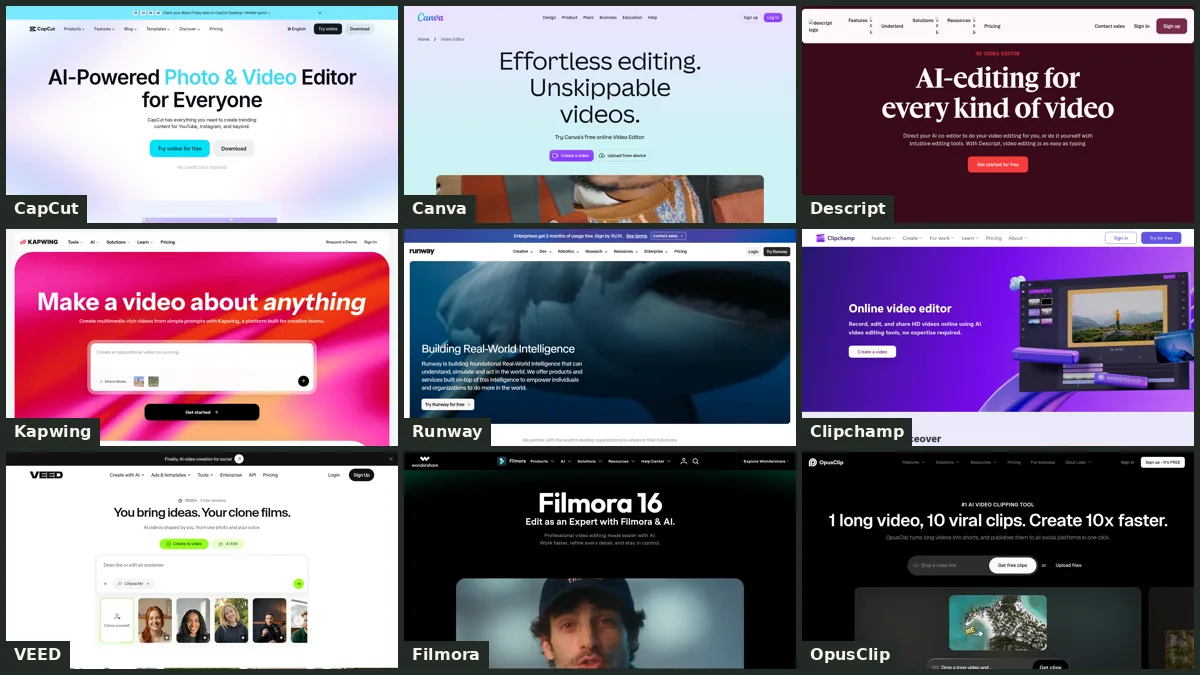
Start free with CapCut for quick social clips, or Canva if you want videos that match the rest of your branding. Clipchamp exports 1080p with no watermark for free. Choose Descript if you mostly talk to camera, Kapwing for subtitles and resizing, OpusClip for turning long videos into Shorts, Filmora for a desktop editor, VEED for a cheap browser upgrade, and Runway only to generate new footage. Paid plans start at about US$50 a year (prices checked Oct 25, 2026).
Quick comparison
| Tool | Our pick for… | Cheapest paid plan | Price checked |
|---|---|---|---|
| CapCut | Phone-first social clips | Pro US$19.99/mo or US$179.99/yr | Checked Oct 25, 2026 |
| Canva | On-brand marketing videos | Pro: US$144/year for one person | Checked Oct 25, 2026 |
| Descript | Talking-head videos and podcasts | Hobbyist: US$16/month billed yearly, or US$24 monthly | Checked Oct 25, 2026 |
| Kapwing | Subtitles and resizing in the browser | Pro: US$16/month | Checked Oct 25, 2026 |
| Runway | Generating new footage | Standard: US$12/month billed yearly, or US$15 monthly | Checked Oct 25, 2026 |
| Clipchamp | Watermark-free exports on a free plan | Premium with Microsoft 365 Personal: US$9.99/month or US$99.99/year | Checked Oct 25, 2026 |
| VEED | A low-cost browser editor upgrade | Creator: US$12.25/month billed yearly (US$147/year), or US$25 monthly | Checked Oct 25, 2026 |
| Filmora | A classic desktop editor | Basic: US$49.99/year (sale price; normally US$59.99) | Checked Oct 25, 2026 |
| OpusClip | Turning long videos into short clips | Starter: US$15/month; Pro: US$14.50/month billed yearly (US$174) | Checked Oct 25, 2026 |
Free plans: the limits that matter
| Tool | Watermark | Max resolution | Time or usage limits | Commercial use | Where it runs |
|---|---|---|---|---|---|
| CapCut | No, unless you use Pro assets or templates | 1080p | Mobile exports capped at about 15 minutes in some regions | Only assets marked for commercial use | Phone, desktop and browser |
| Canva | No | 1080p | Videos up to 30 minutes | Yes (not in a logo or trademark) | Browser, desktop and phone |
| Descript | Yes | 720p | 60 media minutes a month | Yes, for your own content | Desktop app and browser |
| Kapwing | Yes | 720p | Exports up to 4 minutes, 30 export minutes a month | Yes, with a visible credit to Kapwing | Browser |
| Runway | Yes | 720p | 125 one-time credits | Yes, you own your outputs | Browser |
| Clipchamp | No | 1080p | — | Yes, including free stock | Browser and Windows app |
| VEED | Yes | 720p | — | Yes | Browser |
| Filmora | Yes | — | — | Paid plan needed | Windows and Mac (plus phone apps) |
| OpusClip | Yes | 1080p | Clips kept for 3 days | No: personal use only | Browser |
The nine tools, one by one
1. CapCut
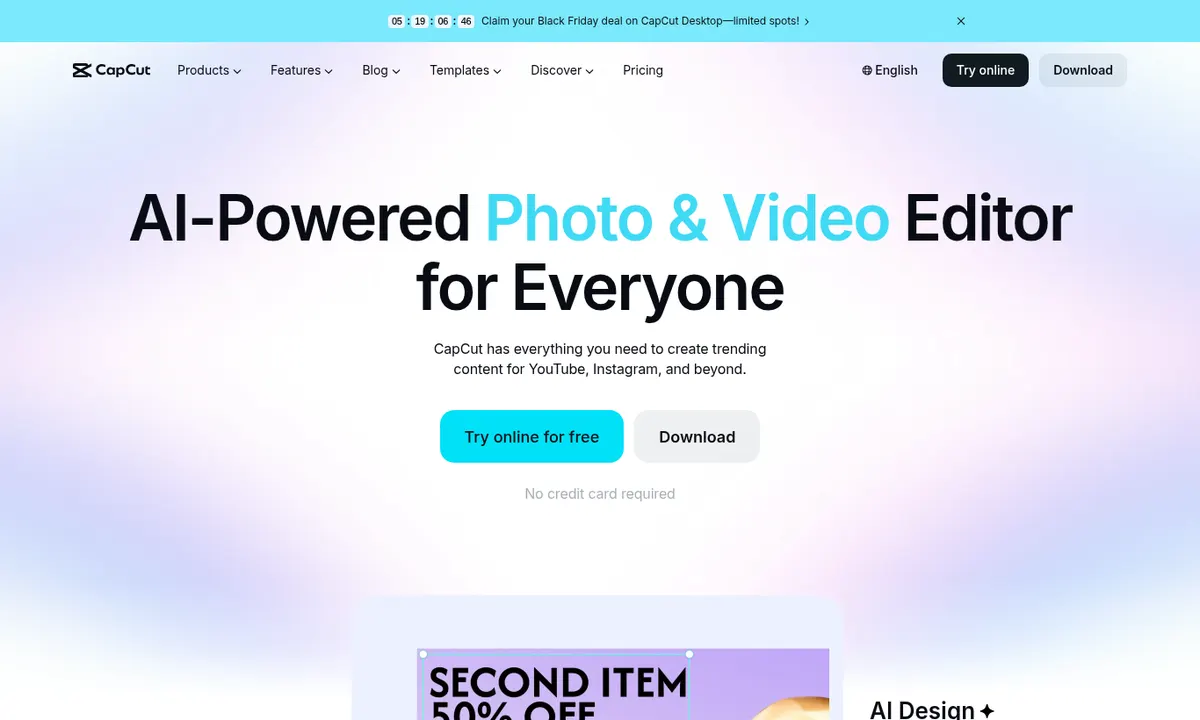
Free plan: Yes, with editing, templates and 1080p exports. Exports are watermark-free unless you use Pro assets or templates. Cheapest paid plan: Pro is US$19.99/month or US$179.99/year, per CapCut's own Standard-vs-Pro guide and an Oct 2026 review. CapCut says prices are for reference only and can vary by app store, so check the current price before you pay.
- Huge template library made for short social video
- Auto captions and quick effects
- Free 1080p exports without a watermark
- Only assets marked for commercial use are cleared for business videos; standard CapCut Sounds are personal-use only
- Many of the best effects sit behind Pro
2. Canva
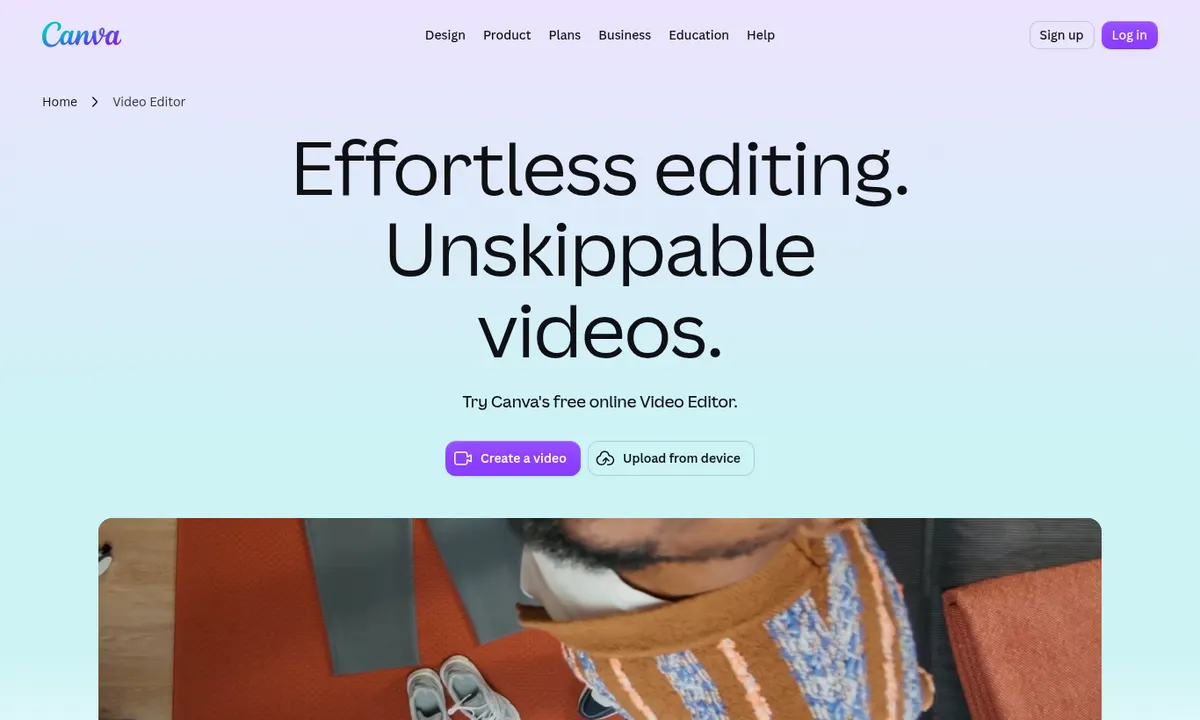
Free plan: Yes. Canva Free includes the video editor and exports MP4s up to 1080p and 30 minutes long. Cheapest paid plan: Canva Pro is US$144/year for one person (here's what Canva Pro costs and the cheaper options). Canva Business is US$250/year per person.
- Video sits next to your posts, flyers and brand colors
- Very easy for total beginners
- Free content can be used commercially (not in a logo or trademark)
- Not a deep video editor
- Brand kits and the premium library need Pro
3. Descript
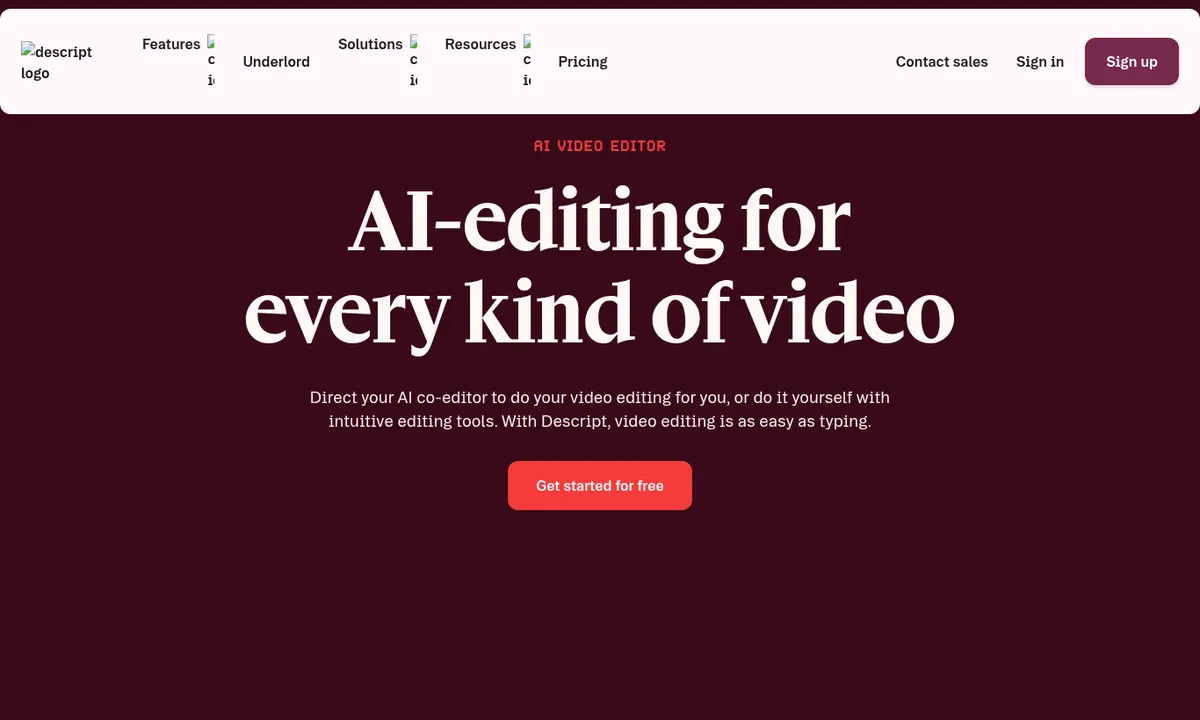
Free plan: Yes: 60 media minutes a month, 720p exports with a watermark and 5GB of storage. Cheapest paid plan: Hobbyist is US$16/month billed yearly (US$24 monthly), with 10 media hours, 400 AI credits and 1080p exports without a watermark.
- You edit the video by editing its transcript, like a document
- Great for cutting out ums, ahs and long pauses
- Useful free plan to learn the workflow
- Free exports are watermarked and capped at 720p
- Media-hour limits take some getting used to
4. Kapwing
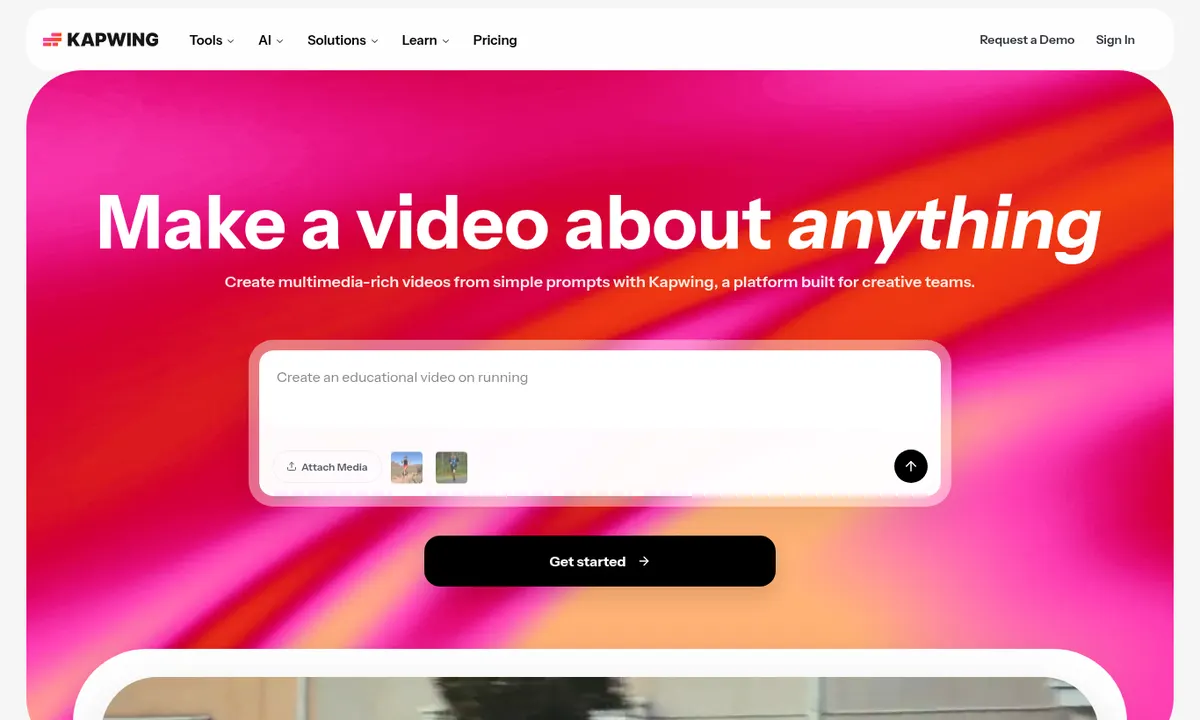
Free plan: Yes, with a watermark, 720p exports up to 4 minutes long, 30 export minutes a month, 10 AI credits and 5GB of storage. Cheapest paid plan: Pro is US$16/month. It removes the watermark and adds 4K, exports up to 2 hours and 1,000 credits.
- Nothing to install: works in the browser
- Strong subtitle and resize tools
- Clear, simple interface
- Free exports carry a watermark and need a visible credit to Kapwing for business use
- Free exports are short (4 minutes) and 720p
5. Runway
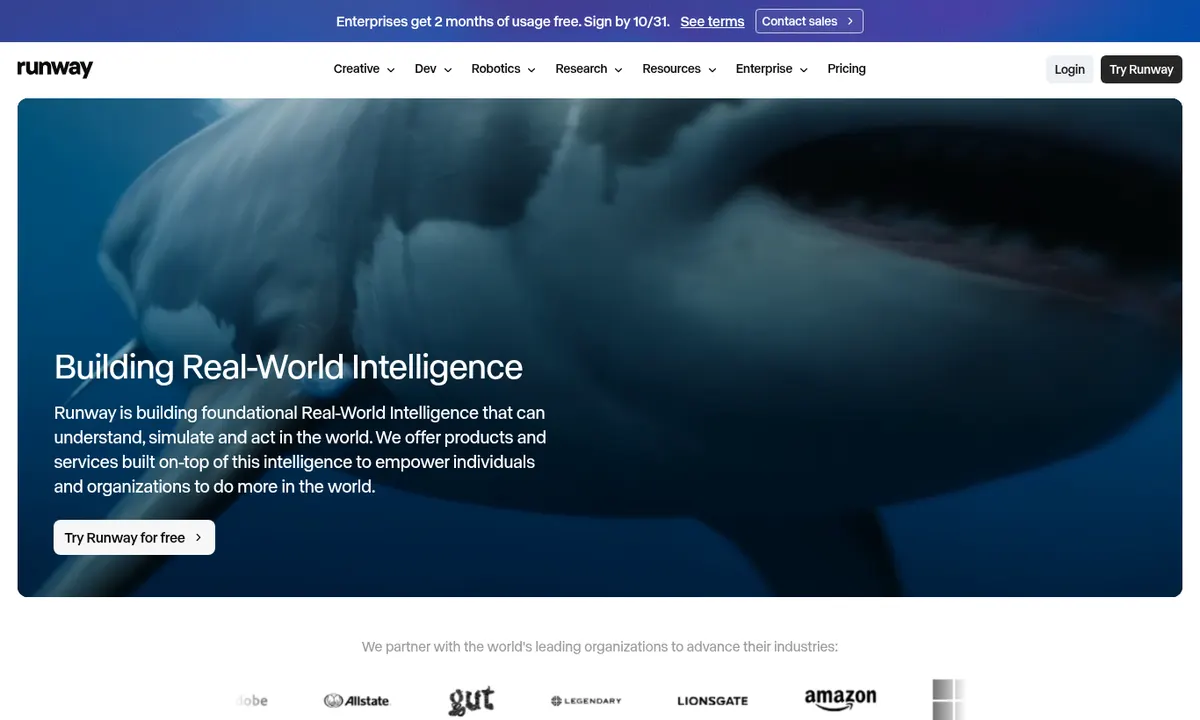
Free plan: 125 credits, once. They don't refill, and free videos carry a Runway watermark. Cheapest paid plan: Standard is US$12/month billed yearly (US$15 monthly) with 625 credits a month, which Runway puts at about 52 seconds of Gen-4.5 video.
- Generates clips you couldn't film yourself
- You own what you make, even on the free plan
- Credits go fast: under a minute of top-model video a month on Standard
- It's a generator, not an everyday editor
6. Clipchamp
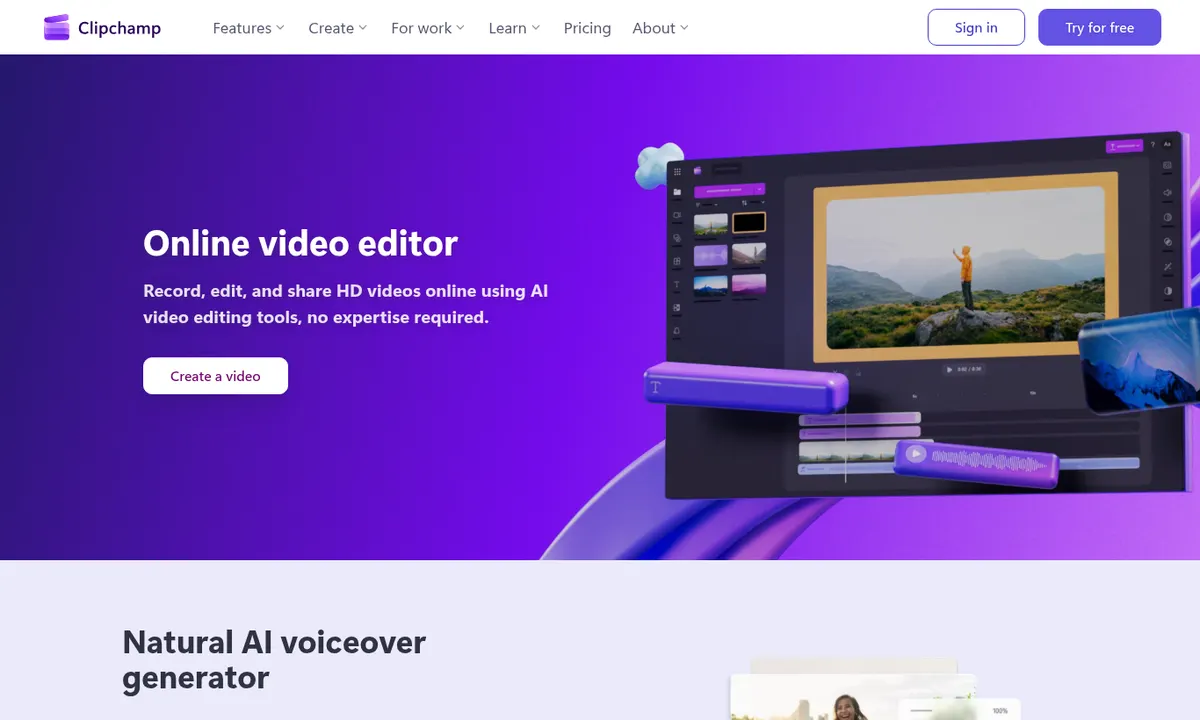
Free plan: Yes: 1080p exports with no watermark, and free stock you can use commercially. Cheapest paid plan: Premium (4K exports and premium stock) comes with Microsoft 365 Personal at US$9.99/month or US$99.99/year, or Microsoft 365 Family at US$129.99/year.
- The most generous free exports here
- Built into Windows and works in the browser
- Premium comes bundled with Microsoft 365, which many businesses already pay for
- Fewer social-first templates than CapCut
- Desktop app is Windows-only
7. VEED
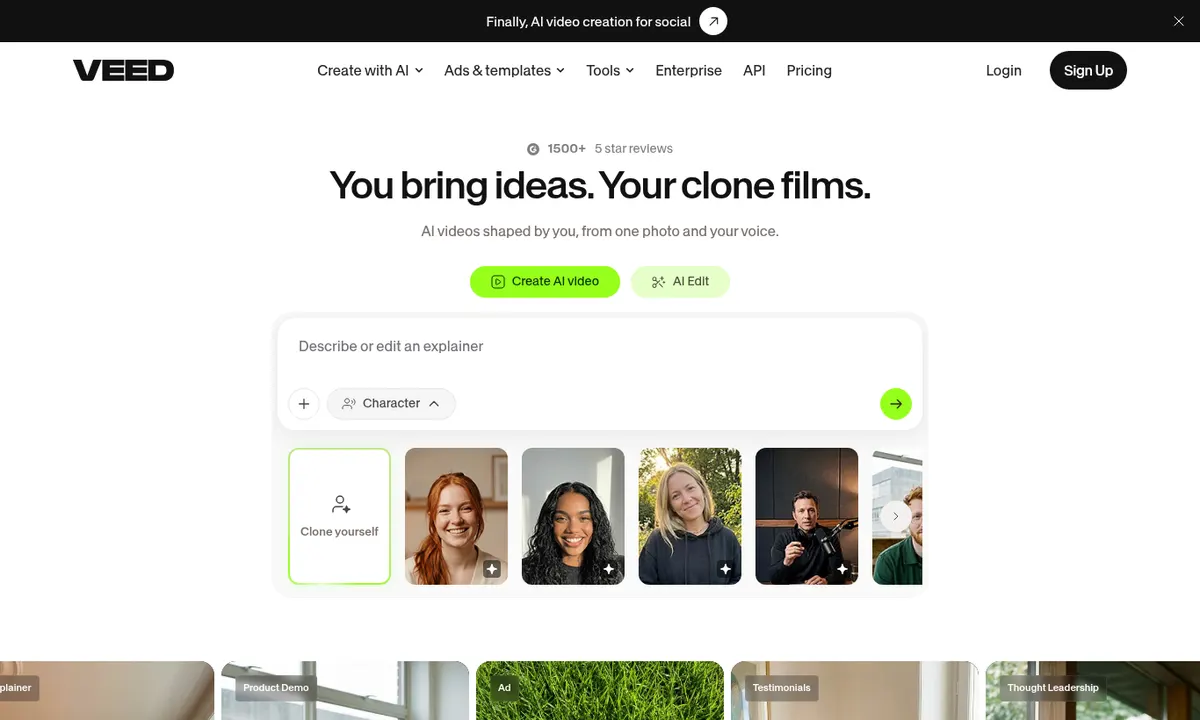
Free plan: Yes, with 720p exports and a VEED watermark. Cheapest paid plan: Creator is US$12.25/month billed yearly (US$147/year), or US$25 month to month, and removes the watermark. Pro is US$22.08/month and Studio US$38.75/month, billed yearly.
- Everything happens in the browser
- Free plan can be used for commercial projects
- Clear step up from free to paid
- Free exports are watermarked and 720p
- Paid plans are priced per user
8. Filmora

Free plan: Yes, the full editor, but every export carries a Filmora watermark. Cheapest paid plan: Basic is US$49.99/year on Wondershare's US store (sale price; normally US$59.99). Advanced is US$59.99/year. Paid plans remove the watermark.
- Proper desktop timeline with lots of effects
- Yearly price is low for a full editor
- Windows and Mac, with phone apps too
- Free exports are watermarked
- Business use needs a paid plan
9. OpusClip
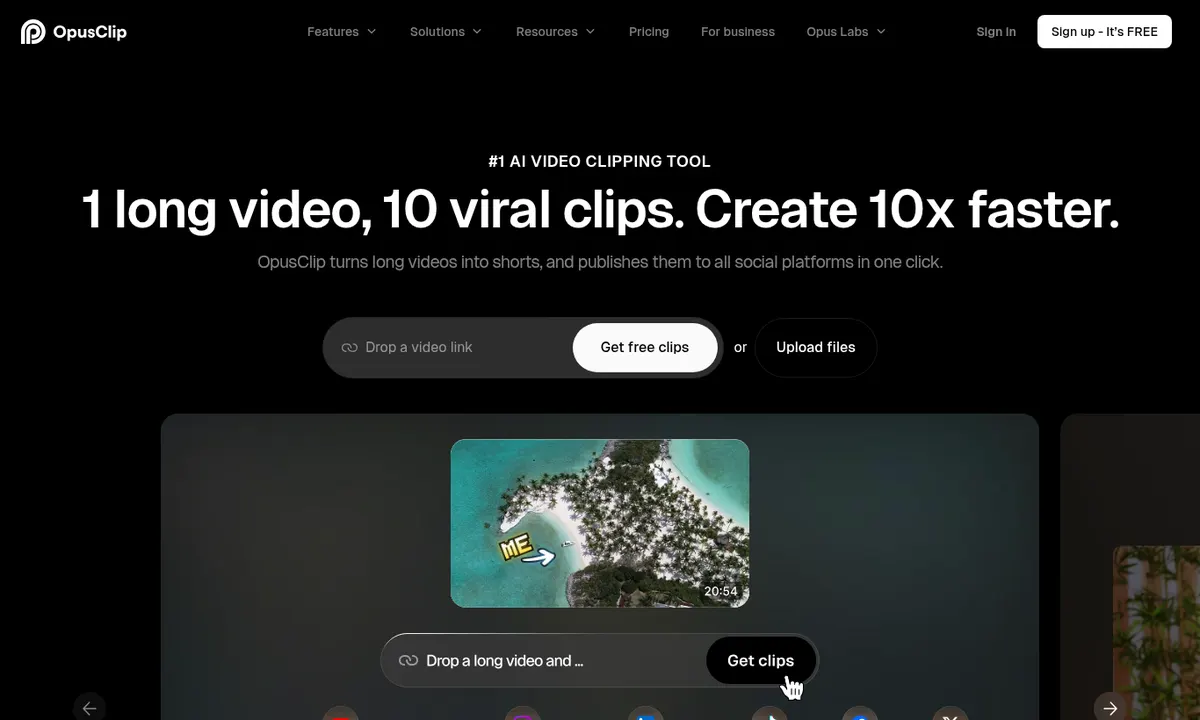
Free plan: Yes, with 1080p exports and a watermark. Clips are kept for 3 days. Cheapest paid plan: Starter is US$15/month (monthly only). Pro is US$29 monthly or US$14.50/month billed yearly (US$174).
- Finds the best moments in long videos for you
- Built for Shorts, Reels and TikTok
- Pro is good value billed yearly
- The free plan is for personal use only
- Built for clipping, with only basic editing tools
Which one should you pick?
| If you want to… | Our pick | Why |
|---|---|---|
| Post short clips to TikTok or Reels from your phone | CapCut | Built for it, with a strong free app |
| Keep videos on-brand with your other marketing | Canva | Your fonts, colors and templates are all in one place |
| Record yourself talking and tidy it up fast | Descript | Editing the transcript edits the video |
| Add subtitles and resize for every platform | Kapwing | Quick browser tools for exactly that |
| Create footage you don't have | Runway | AI video generation, priced by credits |
| Export free videos with no watermark | Clipchamp | Free 1080p exports with no watermark |
| Upgrade cheaply from a free browser editor | VEED | Creator is about US$12 a month, billed yearly |
| Edit on a proper desktop timeline | Filmora | Full editor for under US$60 a year |
| Turn webinars and podcasts into Shorts | OpusClip | Finds and cuts the clips for you |
Our verdict
Most beginners don't need to pay yet. Start with CapCut or Canva on the free plan and make ten videos. If watermarks are the deal-breaker, Clipchamp's free plan exports 1080p with none. If you mostly talk to camera, Descript is the biggest time-saver on this list.
Want more options? Our video editing tool picks list every editor we've priced, free plans first.
Pay when a limit gets in your way twice: a watermark, a resolution cap or running out of minutes. Leave Runway until you know exactly which shot you can't film yourself, because its credits disappear quickly.
— Artificially Nerdy
FAQ
What is the best free AI video editor for beginners?
For short social videos, CapCut's free app is the easiest start. If you already design in Canva, its free video editor keeps everything on-brand. Clipchamp gives you 1080p exports with no watermark, and Descript's free plan suits people who talk to camera.
What is the easiest video editing app for beginners?
Canva and CapCut. Canva feels like making a slide, and CapCut's templates do most of the work for short social clips. Both have free plans.
Which free video editors don't add a watermark?
Clipchamp, Canva and CapCut (unless you use Pro assets) export without a watermark on their free plans. Descript, Kapwing, Runway, VEED, Filmora and OpusClip add one.
What's the cheapest paid AI video tool?
Billed yearly, Filmora Basic (US$49.99/year on sale), Clipchamp via Microsoft 365 Personal (US$99.99/year) and Canva Pro (US$144/year) are the cheapest here, with VEED Creator close behind at US$147/year. Runway Standard and Canva Pro both work out to about US$12 a month billed yearly. Prices checked Oct 25, 2026.
Can I use free video editors for business videos?
Canva, Clipchamp, VEED, Descript and Runway allow business use on their free plans. Kapwing does with a visible credit, CapCut only with assets marked for commercial use, and Filmora and OpusClip need a paid plan.
Which tool turns long videos into short clips?
OpusClip is built for exactly that: it finds the strongest moments in a long video and cuts them into vertical clips for Shorts, Reels and TikTok.
Sources
- CapCut pricing — Free, Pro, Ultra and Teams
- CapCut Materials License Agreement — commercial use of assets
- Canva pricing (US) — Canva Pro US$144/year
- Canva Content License Agreement — commercial use of Free content
- Descript pricing — Free, Hobbyist, Creator and Business
- Kapwing pricing — Free and Pro limits
- Kapwing: License information — attribution on the free plan
- Runway pricing — Standard, Pro and Max
- Runway Help: Free plan details — watermark and credits
- Runway Help: Commercial use
- Microsoft Support: Clipchamp products and costs
- Microsoft 365 plans (US) — Personal and Family prices
- VEED pricing — Creator, Pro and Studio
- VEED Help: watermarks
- Filmora store — Basic and Advanced plans
- Filmora: Usage of the license
- OpusClip pricing — Free, Starter and Pro
- OpusClip Terms of Service — free plan for personal use